
How to use PNG JPEG and WebP Image Converter
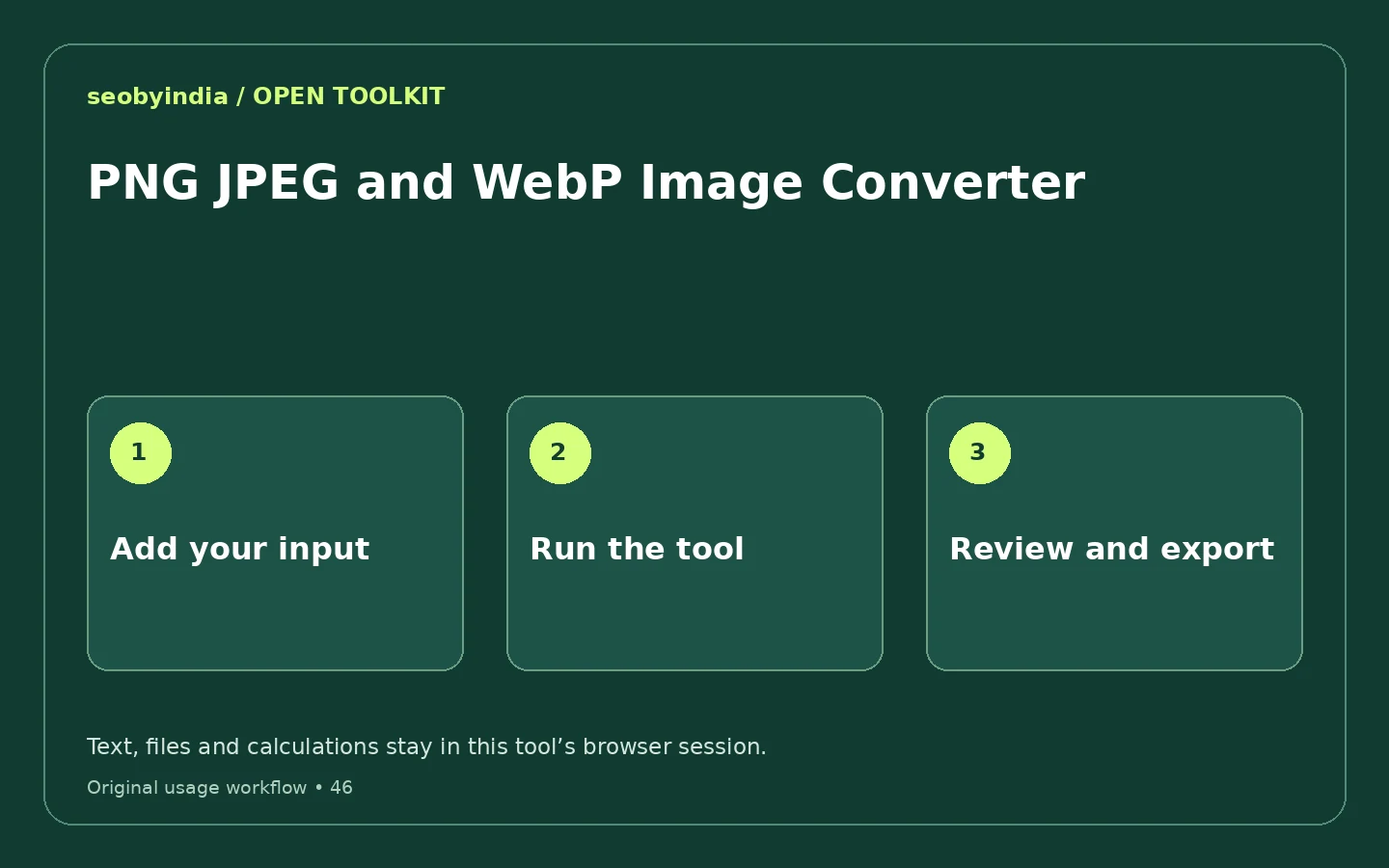
Add the right input
Use Choose an image, Output format. Choose your local file and confirm the available format or size settings. Keep the original file so you can compare the exported copy.
Run the tool and inspect the result
The browser decodes the source and encodes its pixels in the selected supported format. JPEG output is composited onto white.
Review, then copy or download
Check the output against the example and the limits below. Download the new file and open it in a suitable viewer before replacing any original.
Worked example
What a useful result looks like
A transparent PNG can be exported as WebP; JPEG export uses a white background.
Understand the method and its limits
The browser decodes the source and encodes its pixels in the selected supported format. JPEG output is composited onto white.
Conversion does not improve source resolution. Animation and original metadata are not preserved by this single-frame canvas conversion.
Watch the animated usage guide
28-second illustrated guide with on-screen text and no audio. This is an example walkthrough, not a recording of your input.
Read the video transcript
- Add the right input. Use Choose an image, Output format. Choose your local file and confirm the available format or size settings. Keep the original file so you can compare the exported copy.
- Run the tool and inspect the result. The browser decodes the source and encodes its pixels in the selected supported format. JPEG output is composited onto white.
- Review, then copy or download. Check the output against the example and the limits below. Download the new file and open it in a suitable viewer before replacing any original.
Questions and answers
Is this PNG JPEG and WebP Image Converter free?
Yes. This tool can be used without an account or subscription. It works in a modern browser with JavaScript enabled. Your device and browser resources determine practical processing capacity.
What should I check before using the output?
Conversion does not improve source resolution. Animation and original metadata are not preserved by this single-frame canvas conversion.
Will the tool preserve my original image?
The tool creates a new downloadable output and does not overwrite the local source. Keep your original file, because exported images can lose metadata, animation or detail.
Does this tool upload my input?
The tool implementation performs its calculation or file transformation in your browser. It does not upload your source text or selected files for processing. Use Clear when you are finished, and avoid entering secrets into shared computers.
Related tools for the next task
Browse the complete free toolkitTechnical reference
Original SEOByIndia implementation and explanatory content · Published 12 November 2026. Examples are illustrative. These utilities do not claim search rankings, AI citations or unmeasured traffic results.
Need help turning a result into a useful change?
Share your website and the specific issue you are working on. We can discuss the next check, a focused scope and what evidence would be needed.
Discuss your website