
A linked logo, a PDF icon and a picture card all ask the reader to choose a destination. When a picture supplies the only label, the link needs a name that makes sense on its own. Test both the name a reader hears and the page or file the link opens. A visually correct icon can still take someone to an old resource.
Sample the links by template
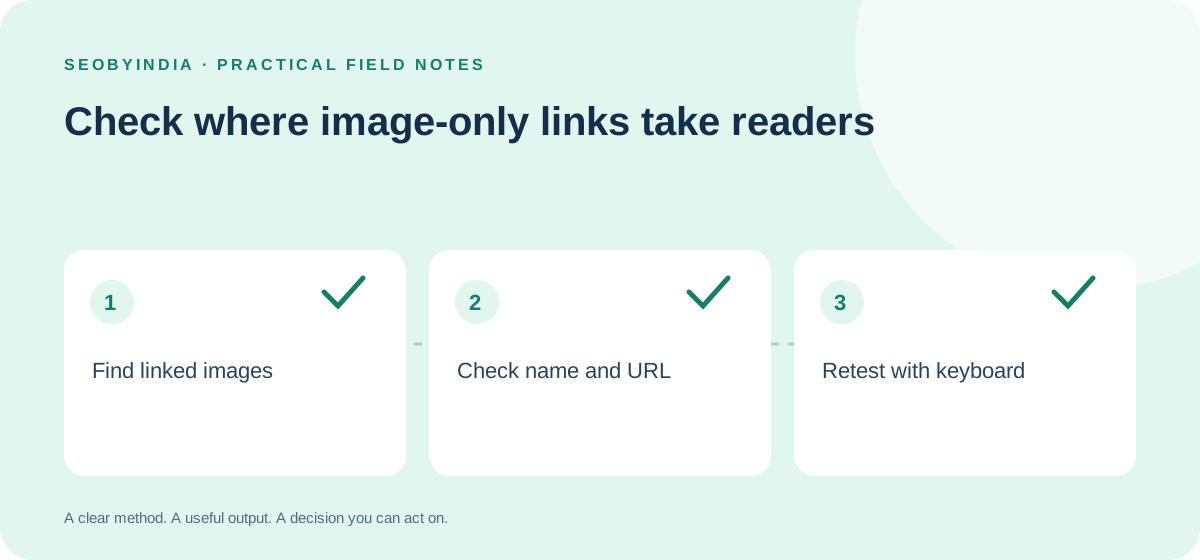
Start with one page each for the header, footer, service cards and download cards. Include mobile and desktop if the templates differ. List the linked image, any text inside the same link, the expected destination and the actual destination. Copy the final href from the rendered page. A link to a real destination normally uses an anchor with an href. If a component inserts the link after the page loads, check the rendered markup as well as the response. Compare response HTML with the rendered page.
Name the link for its purpose
If an image is the only content of a link, its alternative text can name the destination or action. Use “Download the SEO launch checklist (PDF)” for a link that opens the file. Use “SEO launch checklist” when the destination is a page explaining the checklist. Google also uses the alternative text of a linked image as anchor text. Read the name alone and see if it still tells you where you are going.
When an image sits inside the same link as visible text that already describes the destination, an empty alt avoids announcing the same thing twice. Preserve any information that the image adds, such as the file format when it matters. If the icon and label use separate links to the same place, consider making them one link so each card takes one keyboard stop. Review image alternatives for other kinds of images.
Example from a hypothetical resource card
A theme has a clipboard icon and a text link labelled “SEO launch checklist”. Both go to the same resource page. The icon has the alt text “clipboard”, so keyboard and screen reader users encounter two links with different names for one destination. The editor places the icon and the visible label inside a single anchor and gives the icon an empty alternative. A separate link on the resource page reads “Download SEO launch checklist (PDF)” and goes to the file.
Retest the route and the name
Tab through the updated card. Confirm you can see the focus, hear or inspect a useful name, activate the link and reach the intended content. Repeat in a second page that uses the shared template and check the collapsed mobile menu if the change touches navigation. Record the component, link name and final URL in the release notes so a later template edit has a clear acceptance check. Plan the next useful destination for internal links.